Excel Add-In
I am interested in Intratec Excel Add-In...how do I proceed?
The Intratec Data Excel Add-In is available for Advanced and Ultimate plan subscribers.
New Subscribers:
- Purchase the Advanced plan for the desired product at www.intratec.us
- Follow the Excel Add-In tutorial available at intratec.us/data-delivery/excel
Current Subscribers (Starter or Pro plan):
- Upgrade to the Advanced plan
- Follow the Excel Add-In tutorial available at intratec.us/data-delivery/excel
How much does the Intratec Data Excel Add-In cost?
The Intratec Data Excel Add-In is free for Advanced Plan subscribers. There is no additional cost beyond the Advanced Plan subscription.
- Starter and Pro plan subscribers must upgrade to the Advanced Plan to access the Excel Add-In
- A monthly data request limit applies based on the subscription
Intratec Data Excel Add-In built-in functionalities
The Intratec Data Excel Add-In does not provide cell-level functions. Instead, it uses a ribbon interface and templates to retrieve and organize data within Excel.
Using the Excel Add-In on Multiple Devices
Yes, the Excel Add-In can be used on multiple devices. All users who need access must:
- Install the Excel Add-In on each device
- Have the developer email and password credentials to log in
What are the System Requirements to Use the Add-In?
To use the Intratec Excel Add-In, your system must meet the following minimum requirements:
Operating System
- Mac: macOS Catalina 10.15 or later
- Windows: Windows 10 or later
Microsoft Excel
- Excel version 16.0 or later
- An active Microsoft Office license is required
Hardware
- RAM: 4 GB minimum (8 GB recommended)
- Disk Space: 2 MB for installation; approximately 500 MB for operation
- An active internet connection is required for data retrieval
Where to Save the Add-In File?
The Add-In file (.xlam) must be saved in the correct location for Excel to recognize it automatically.
Windows
Save the .xlam file to:
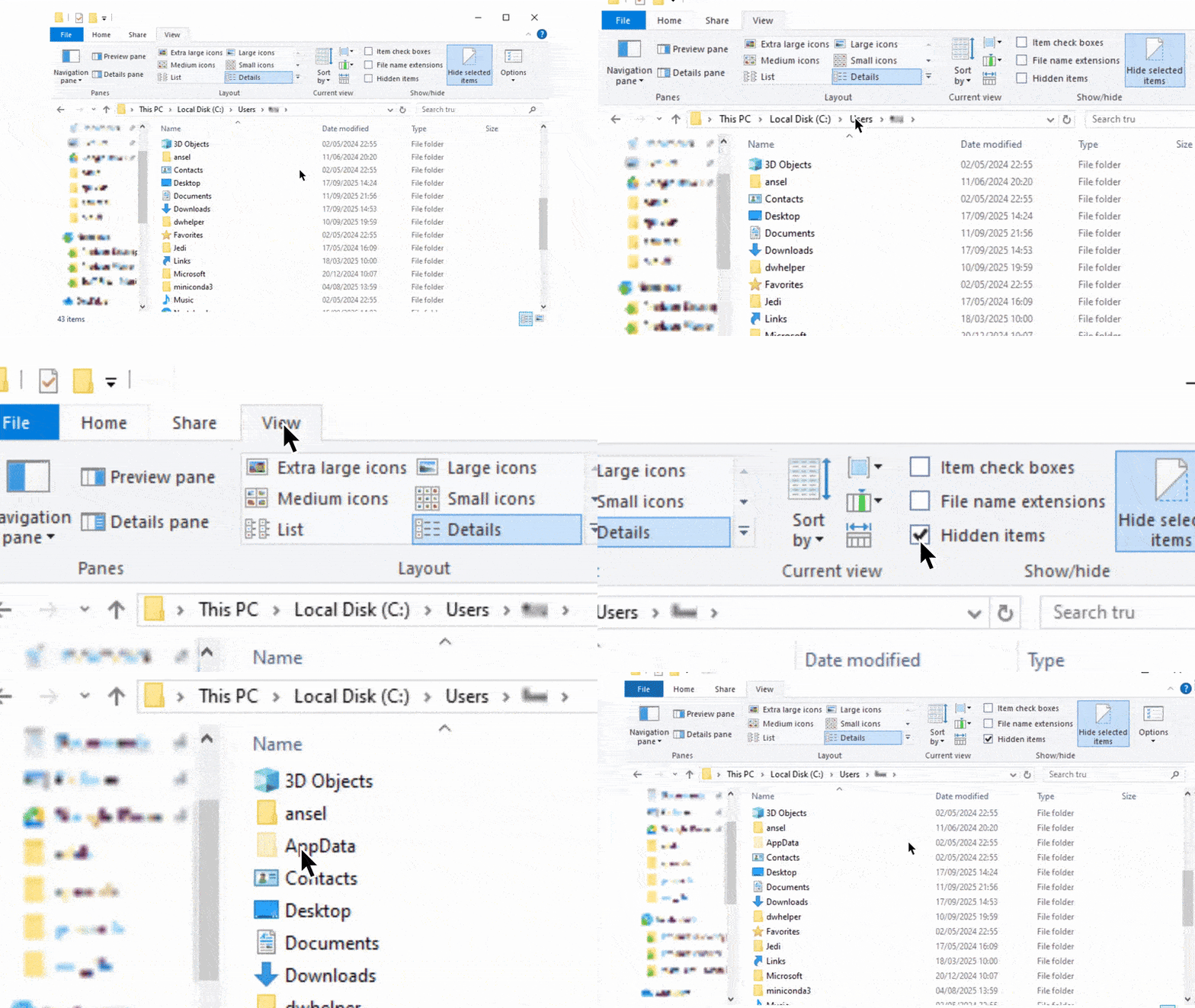
C:\Users\<User>\AppData\Roaming\Microsoft\AddInsThe AppData folder is hidden by default. To reveal it, open File Explorer, go to the View tab, and check Hidden items.
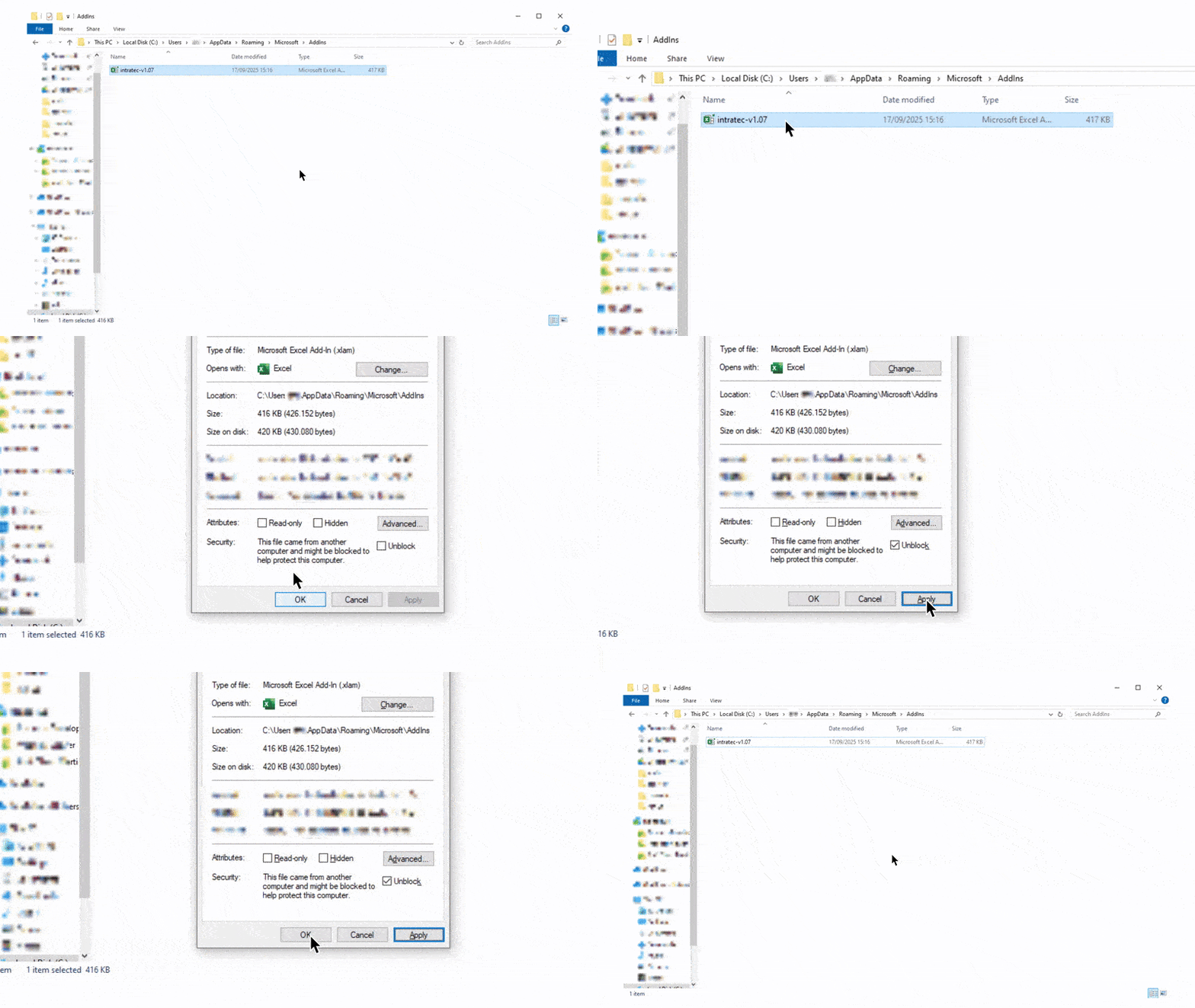
After copying the file, right-click it, select Properties, and click Unblock if the option appears. This ensures Windows does not block the file from running.
Mac
Save the .xlam file to:
/Users/<User>/Library/Group Containers/UBF8T346G9.Office/User Content/Add-Ins/You can save the file to a different location, but you will need to browse manually to that location when enabling the Add-In in Excel.
How to Enable the Add-in in Excel?
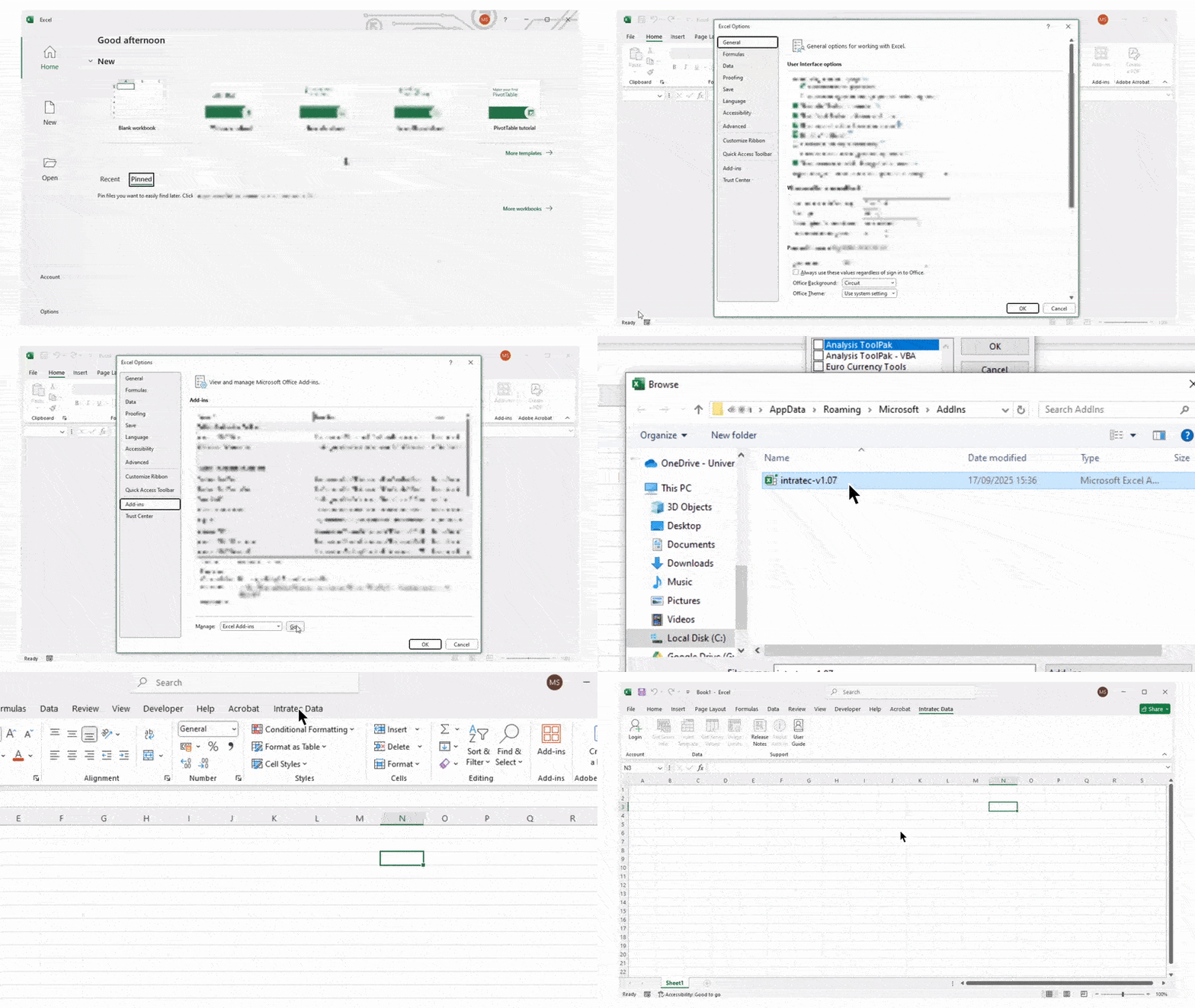
Once the .xlam file is saved in the correct directory, follow these steps to enable it:
- Open Excel
- Go to File > Options > Add-Ins on Windows, or Preferences on Mac
- At the bottom, set Manage to Excel Add-ins and click Go...
- In the Add-Ins dialog, check the Intratec box
- Click OK
If the Intratec Add-In is not listed, click Browse... and navigate to the folder where you saved the .xlam file.
How to Log in to the Excel Add-In?
To log in to the Excel Add-In, you need an Intratec account with the Developer role enabled.
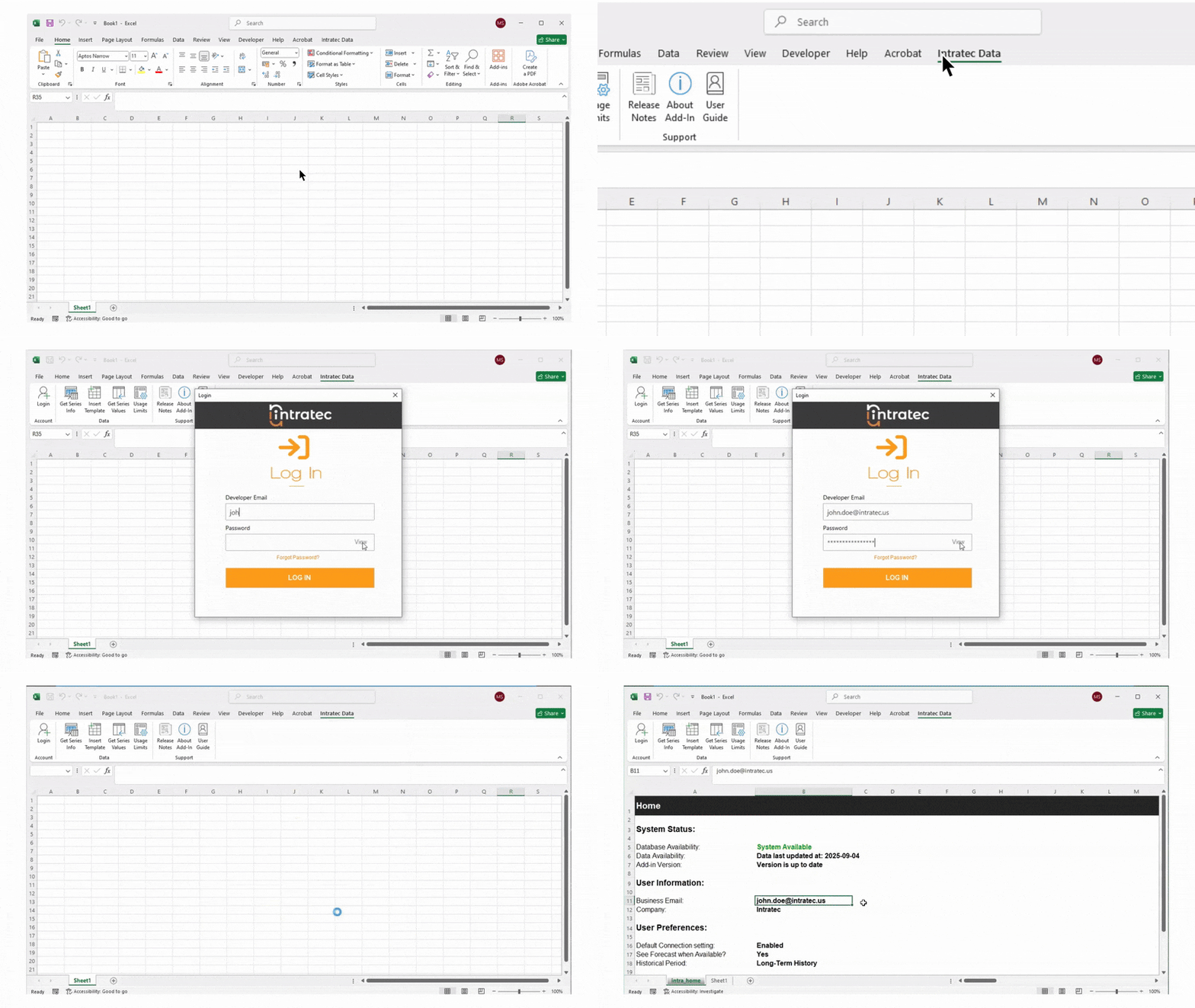
- Open Excel with the Add-In enabled
- Go to the Intratec Data tab in the ribbon
- Click Login
- Fill in your credentials (email and password)
- Use the View password option to verify your entry if needed
- Click Log In
After a successful login, the intra_home sheet is displayed. It shows:
- System availability information
- Latest data release information
- Add-In version status
- User information, including business email and company
- Preferences for historical and forecast data
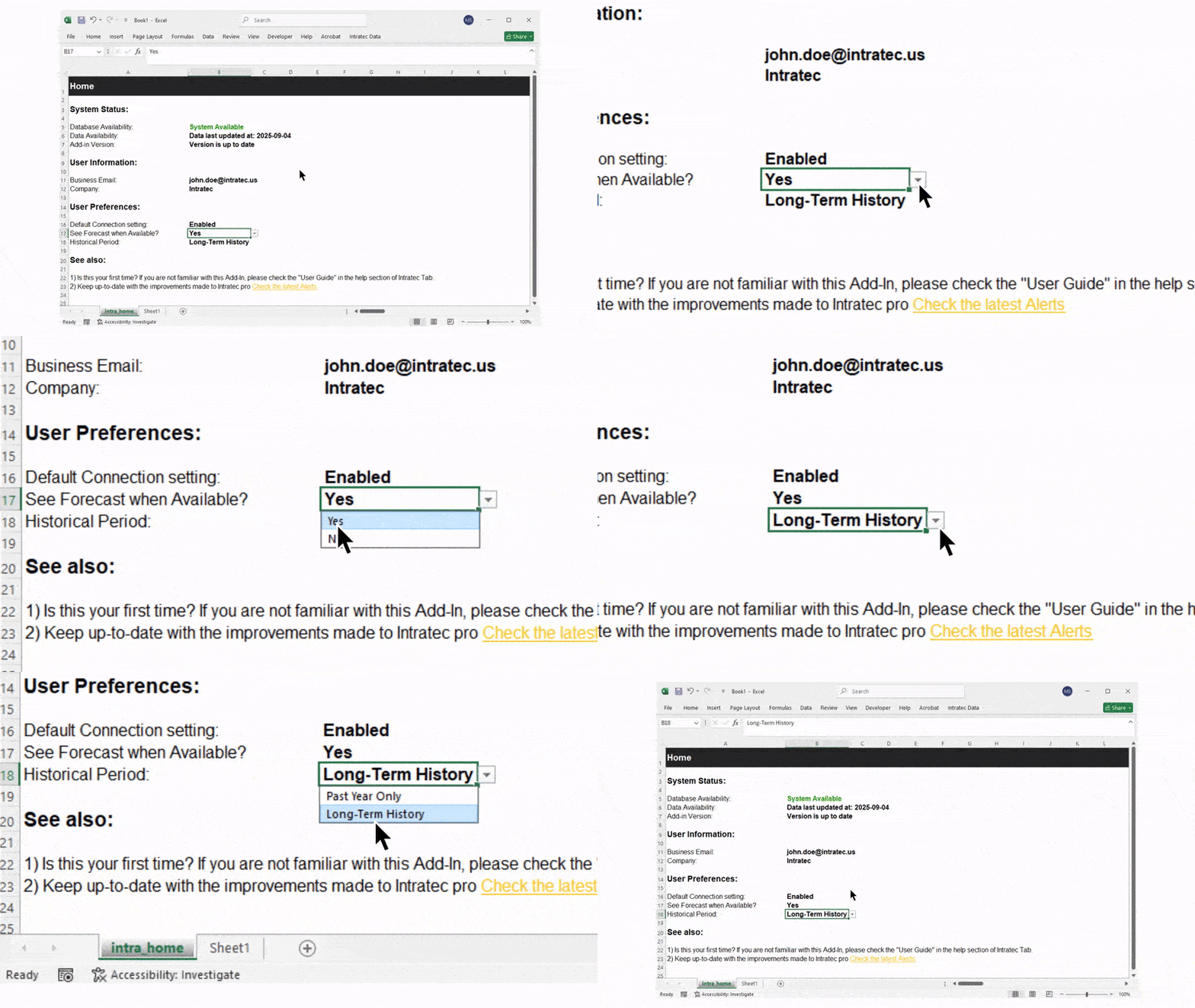
How to Access Long-Term Historical Data?
You can configure long-term historical data access through the intra_home tab in the Add-In.
After logging in, navigate to the intra_home sheet. From there, select your preferred option among the available history and forecast configurations. The available options will depend on your subscription coverage.
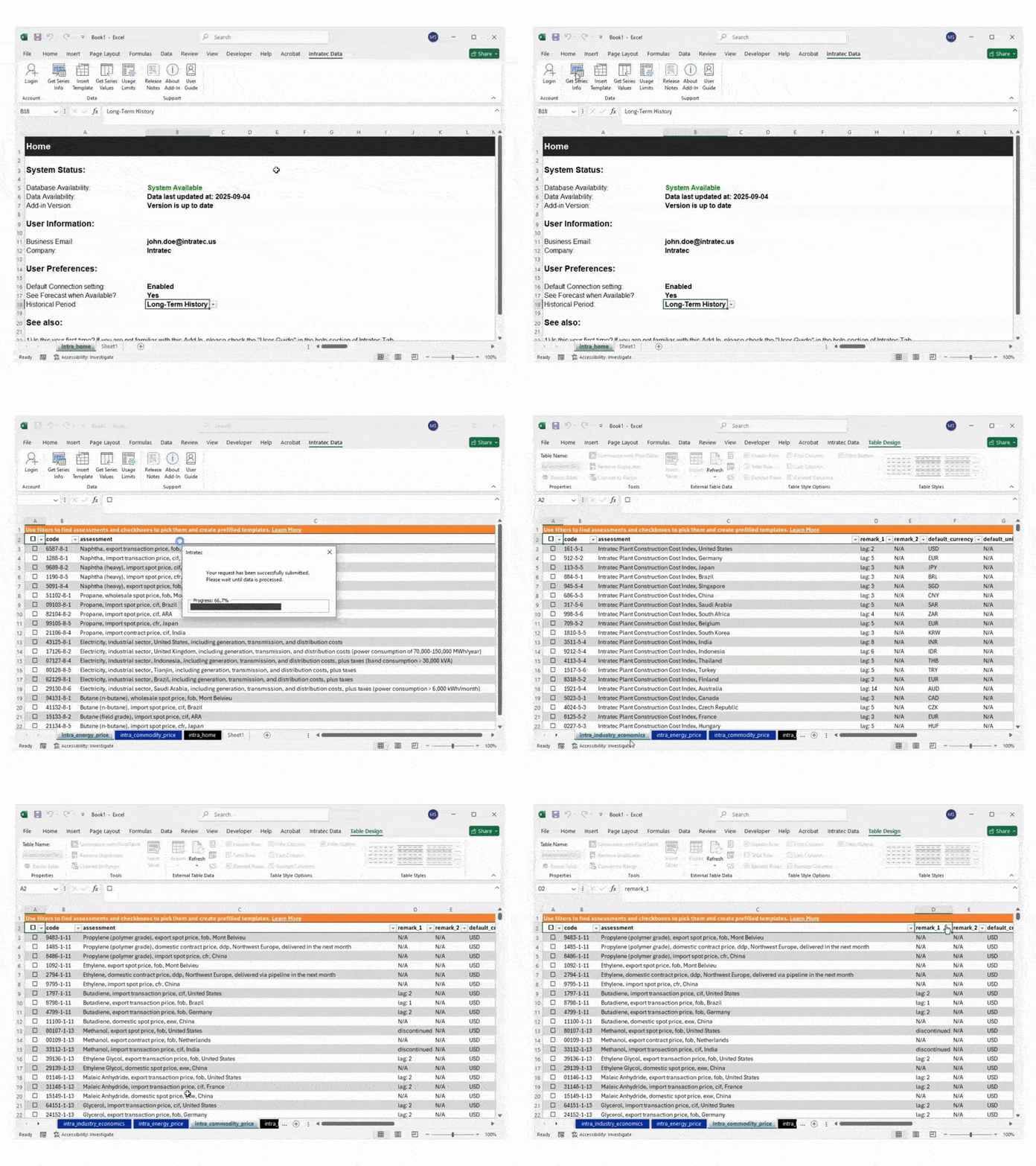
How to List Available Assessments?
To see all assessments available under your subscription:
- Click Get Series Info in the Intratec Data tab
Each subscription product is displayed in a separate blue-colored tab:
- intra_commodity_price
- intra_energy_price
- intra_industry_economics
Only the sheets related to the products included in your subscription are displayed, and each sheet shows only the assessment series covered by that subscription.
The assessment sheets contain the following columns:
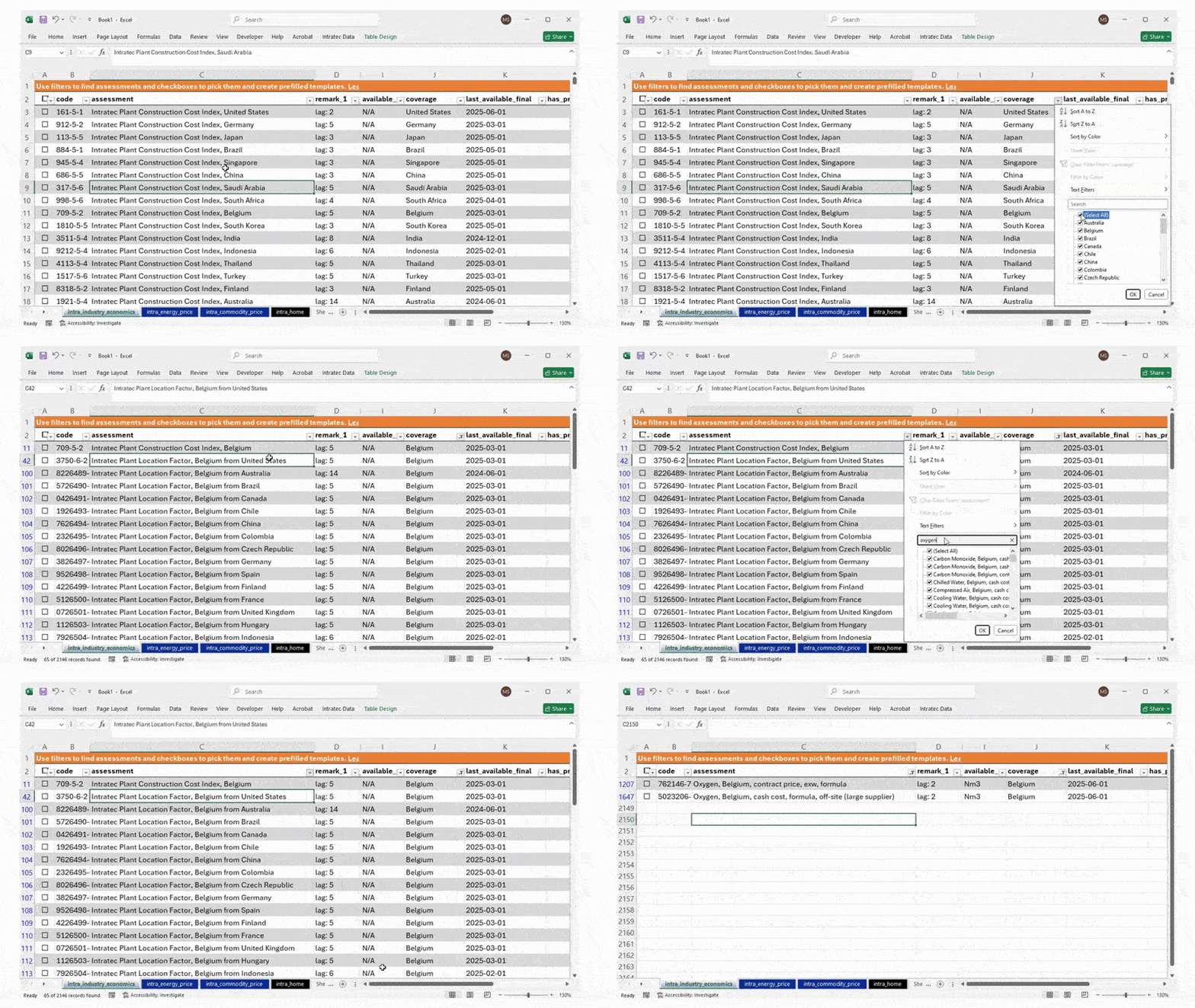
How to Select Assessments to View Series Values?
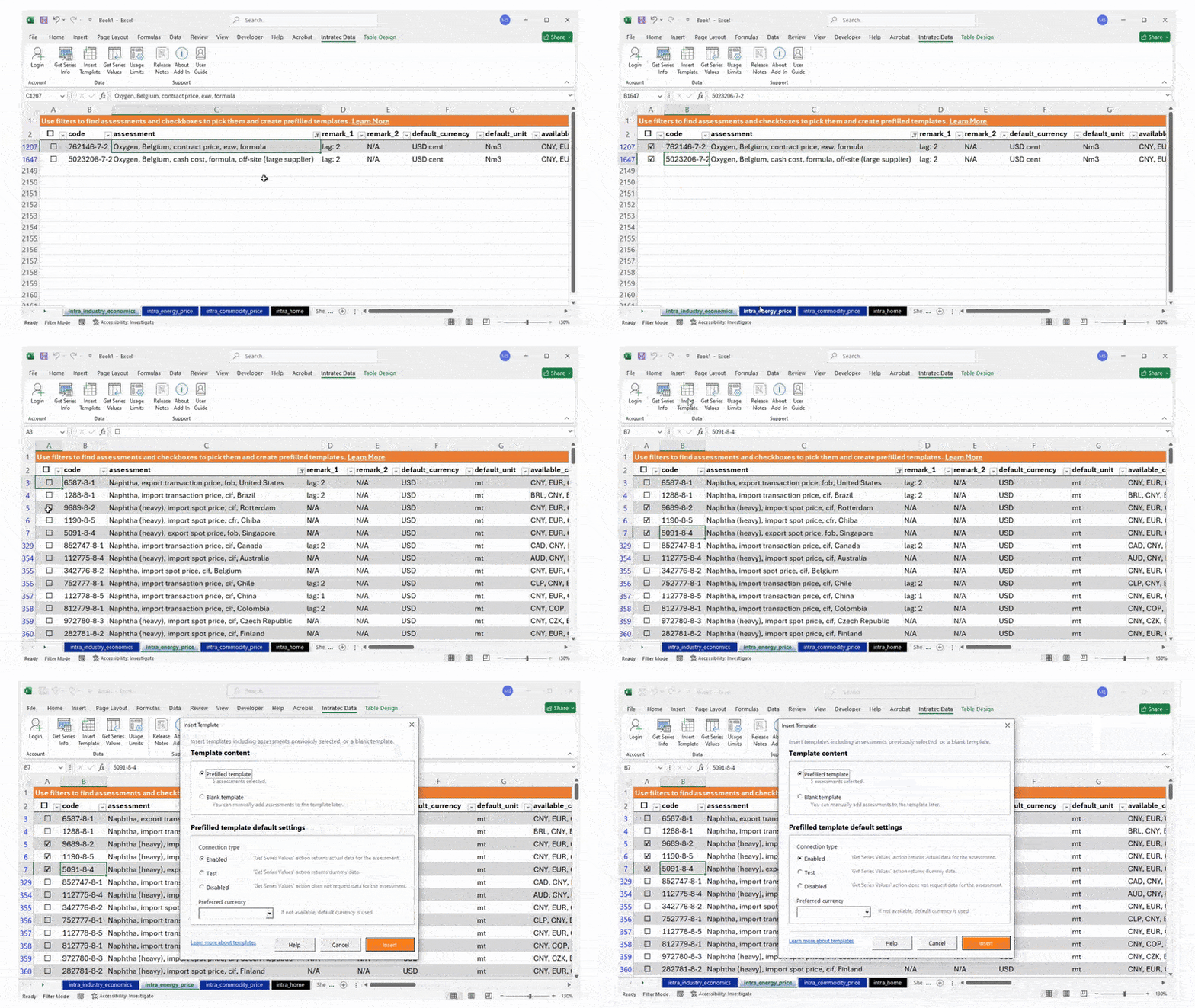
In the assessment info sheets, use Excel Data Filter on the header row to narrow down the list of assessments based on your criteria.
To prepare assessments for template loading, check the boxes in column A next to the assessments you want to include. This provides a convenient way to pre-select codes before inserting a template.
What are Templates in Excel Add-in?
Templates define the structure used to retrieve series values from Intratec. Each template can contain up to 40 assessment codes.
Once a template is filled with assessment codes, you can click Get Series Values to populate it with data.
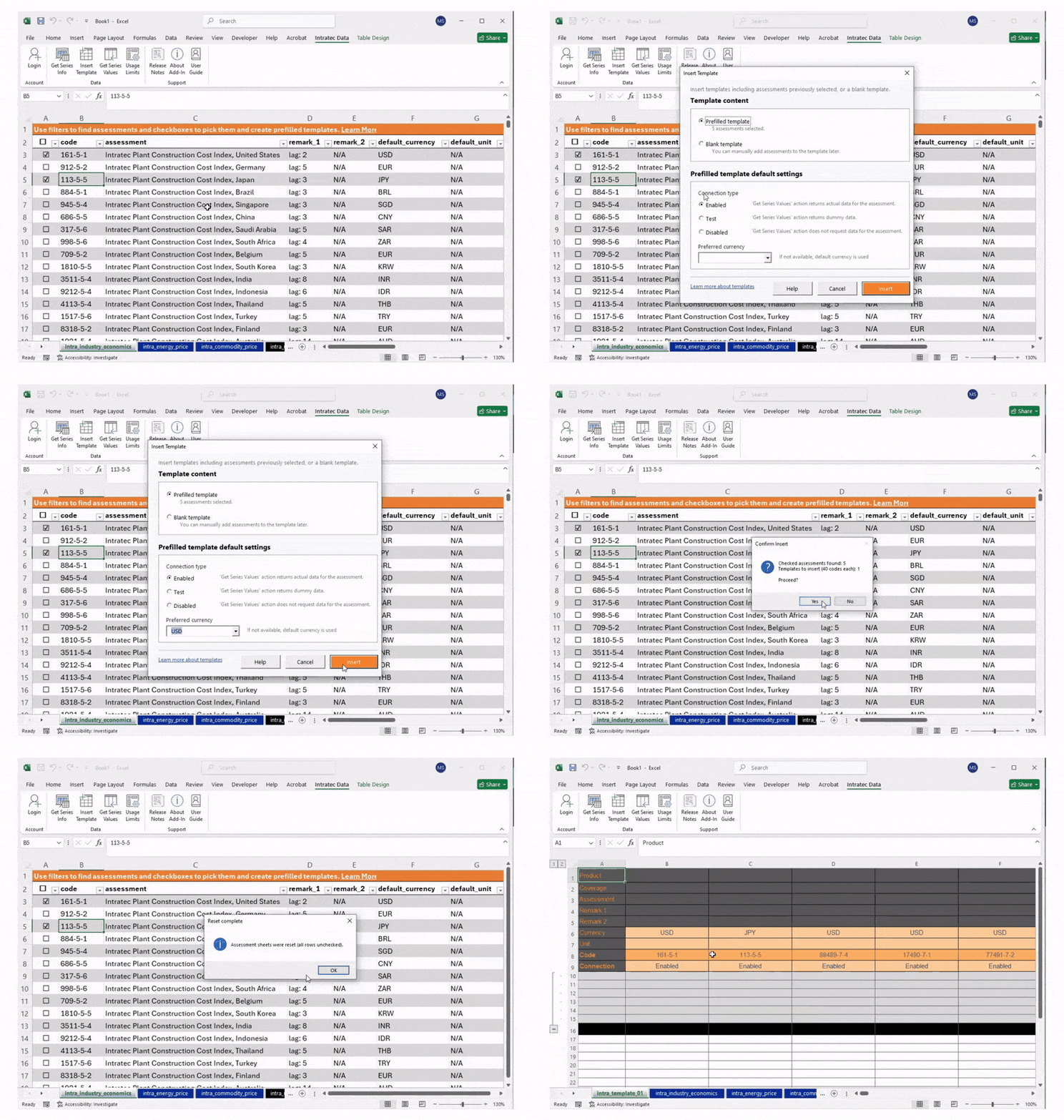
Creating a Prefilled Template
- Select the desired assessments by checking their boxes in column A of the assessment info sheet
- Click Insert Template in the Intratec Data tab
- Choose Prefilled Template
- Under the default settings, select the preferred Connection type and Currency
- Click Insert
The template will be created with the selected assessment codes already populated.
Creating a Blank Template
You can also click Insert Template > Blank Template to create an empty template and manually enter assessment codes.
Do not change the template structure (row names, row and column positions) — this will prevent the Add-In from working properly.
You can rename template sheets if needed. For optimal performance, use no more than approximately 20 templates per file.
How to Get Series Values Displayed?
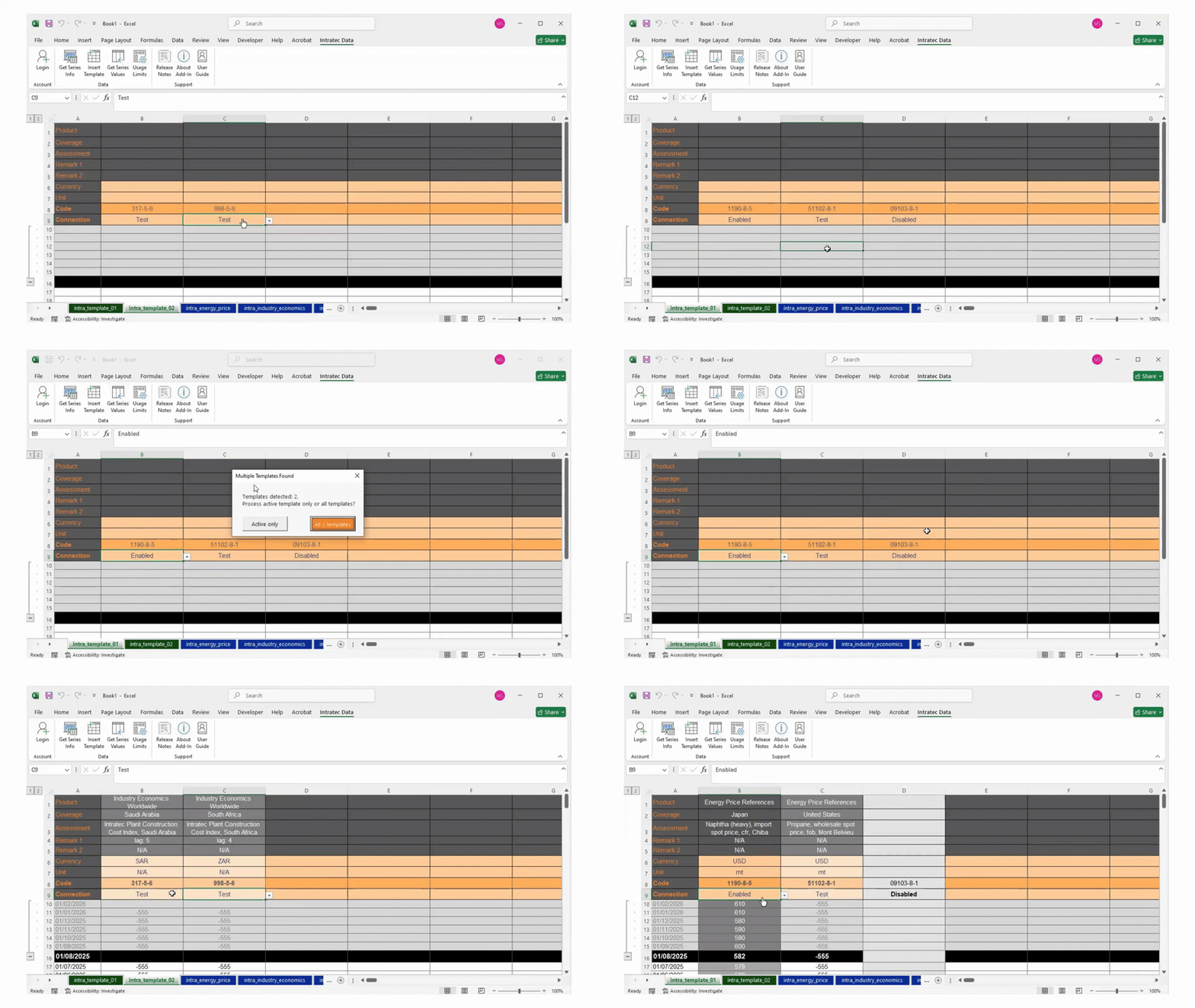
To populate your templates with data:
- Click Get Series Values in the Intratec Data tab
- Choose either All Templates or Active Only
- Confirm the request deduction when prompted
Once all sheets are processed, the selected templates will be populated with the corresponding data values.
Understanding the Connection Setting in Templates
Each template includes a Connection setting that controls how data is retrieved. There are three modes:
- Enabled — Fetches actual data from Intratec. Each request counts against your usage quota.
- Test — Returns dummy data for testing purposes. Does not count against your quota (free).
- Disabled — No data is fetched. Any existing data in the template is preserved.
Use Test mode when setting up templates to verify your configuration without consuming requests. Switch to Enabled when you are ready to retrieve real data.
How to Set Your Preferred Currency and Units?
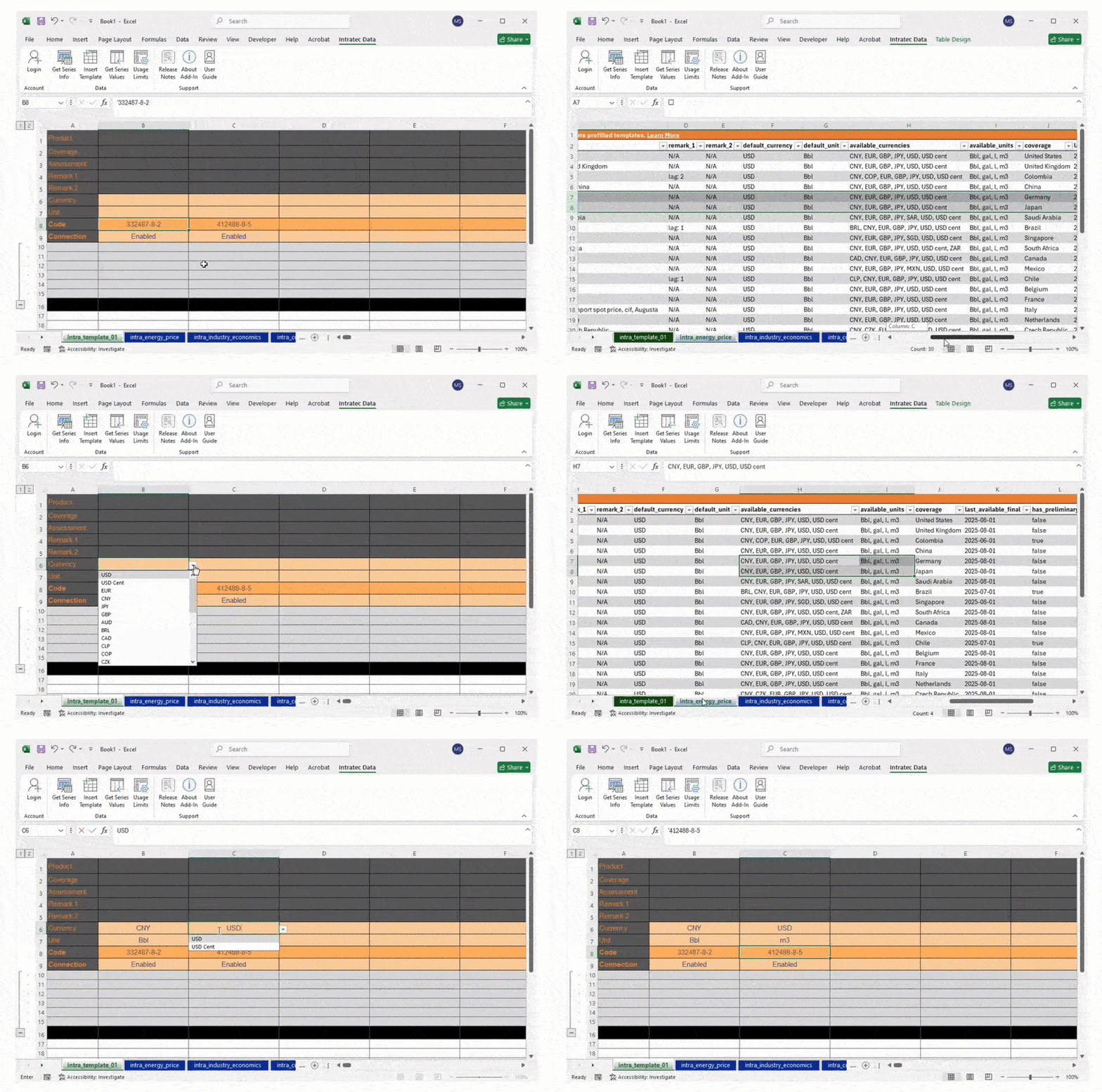
You can customize the currency and units for each assessment in your templates.
- Open the relevant Assessment Info sheet (e.g., intra_commodity_price)
- Check the available_units and available_currencies columns for your assessment
- In your template, set the desired values in the Currency and Unit rows
The Currency and Unit values must match the options listed in available_units and available_currencies. Leave the fields empty to use the default values defined for each assessment.
How to Add or Remove Assessments in a Template?
Removing an Assessment
To remove an assessment from a template, delete the values in the following rows for that column:
- Code
- Connection
- Currency
- Unit
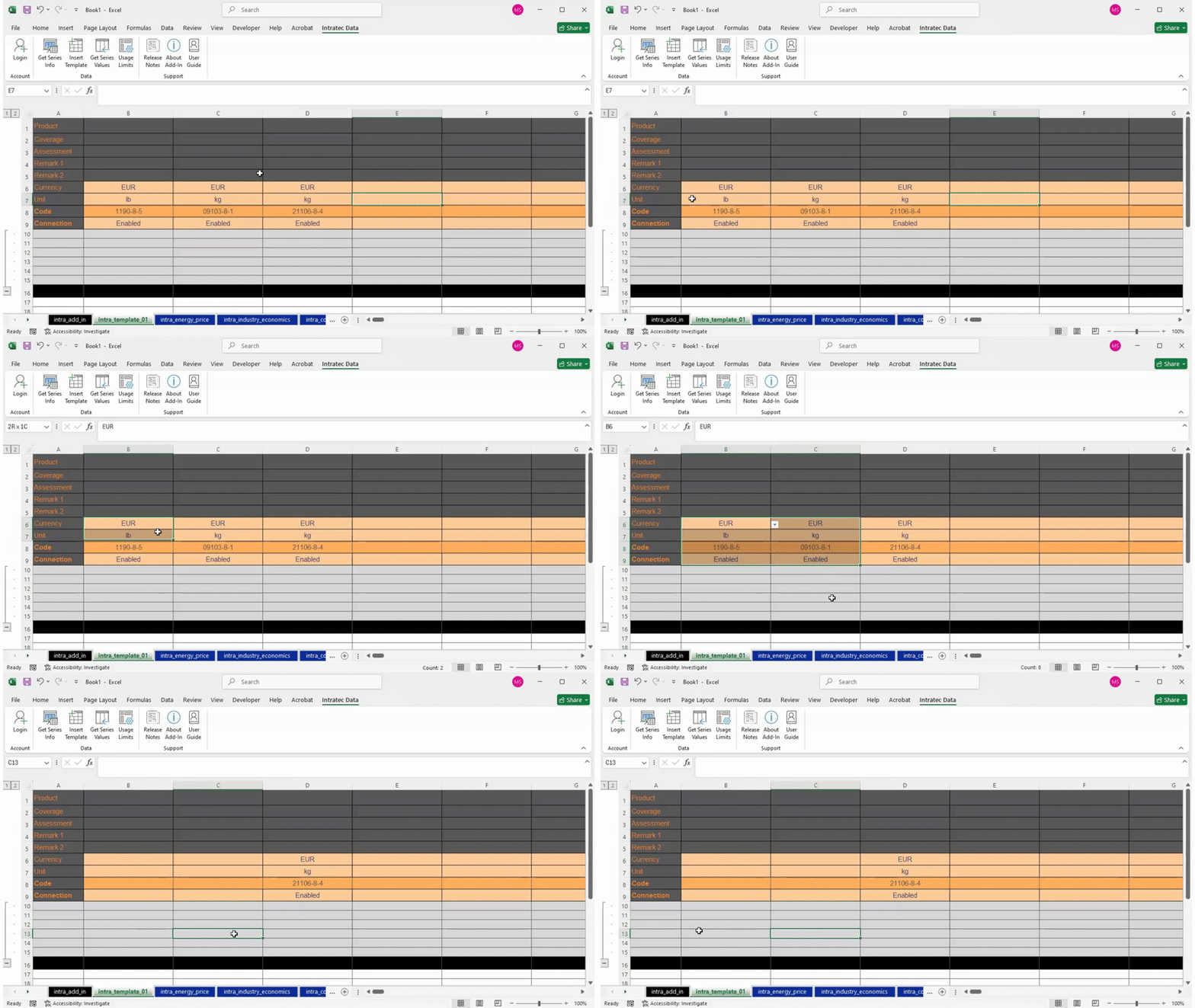
Adding an Assessment
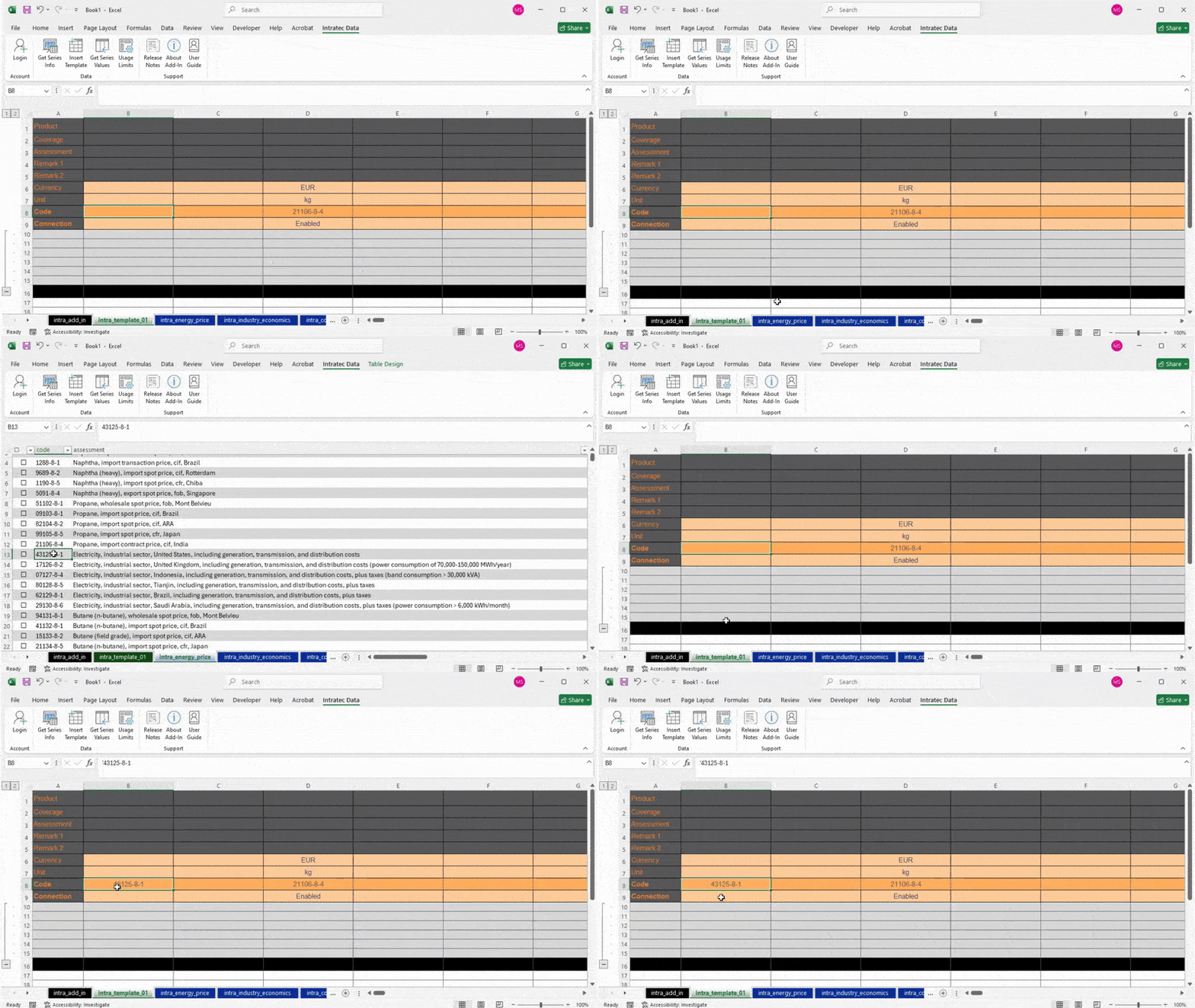
- Open the relevant Assessment Info sheet
- Copy the assessment code
- Paste it into an empty column in the template's Code row
The new assessment will be included the next time you run Get Series Values.
How to Monitor my Request Limits?
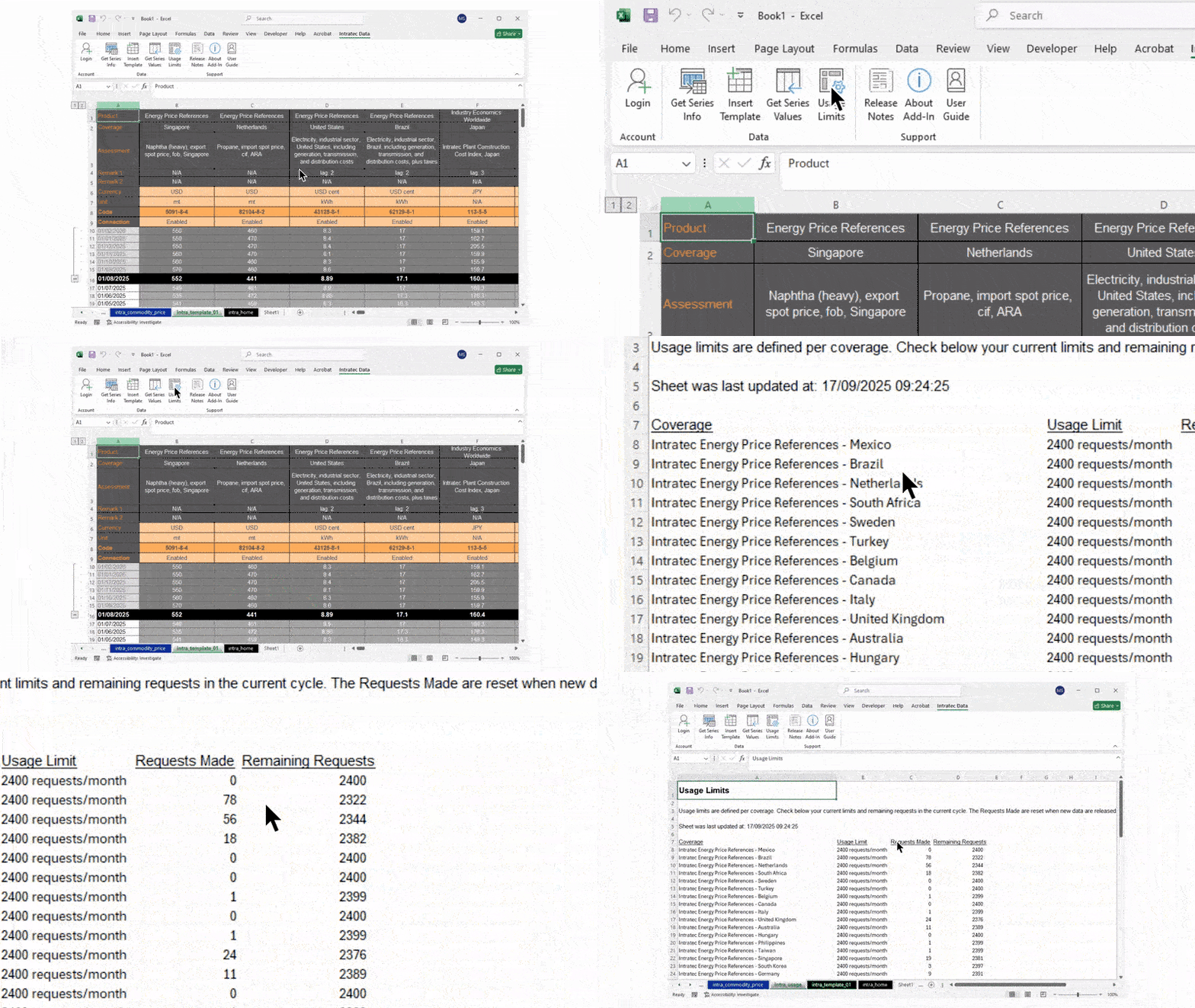
To check your current request usage:
- Click Usage Limits in the Intratec Data tab
- A new sheet is created displaying:
- Coverages — your subscribed data coverages
- Limits — maximum requests allowed per period
- Requests made — number of requests used so far
- Remaining — requests still available
Request counters reset automatically on each new data release.
What Does "System under Maintenance" Mean?
The Intratec Excel Add-In is available 24/7, except during scheduled maintenance windows:
- 15th of each month
- 25th of each month
- Data release day (as defined per the Release Schedule)
During these periods, the system may be temporarily unavailable while data is being updated. These maintenance windows help keep the platform secure, reliable, and up to date. Please refer to the Release Schedule for specific dates.
How to Update the Excel Add-in?
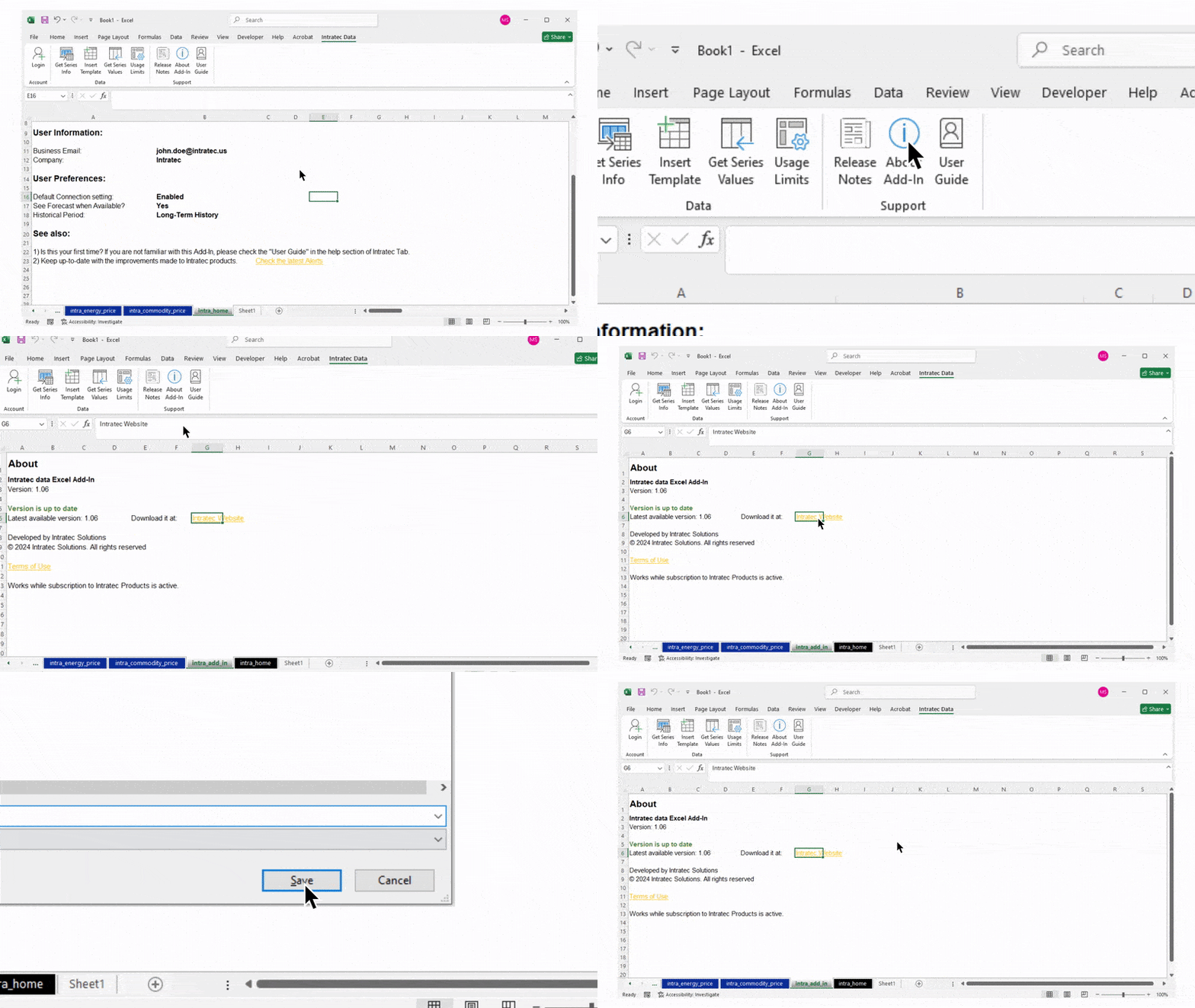
To update to the latest version of the Intratec Excel Add-In:
- Click About Add-In in the Intratec Data tab
- The intra_add_in sheet is displayed
- Click the Intratec Website link on that sheet
- Download the latest version of the Add-In from the website
- Save and install the new
.xlamfile following the same steps as the initial installation
Always ensure you are using the latest version to access new features and fixes.
Where to See the Latest Updates About Assessments?
To view the latest updates about assessments:
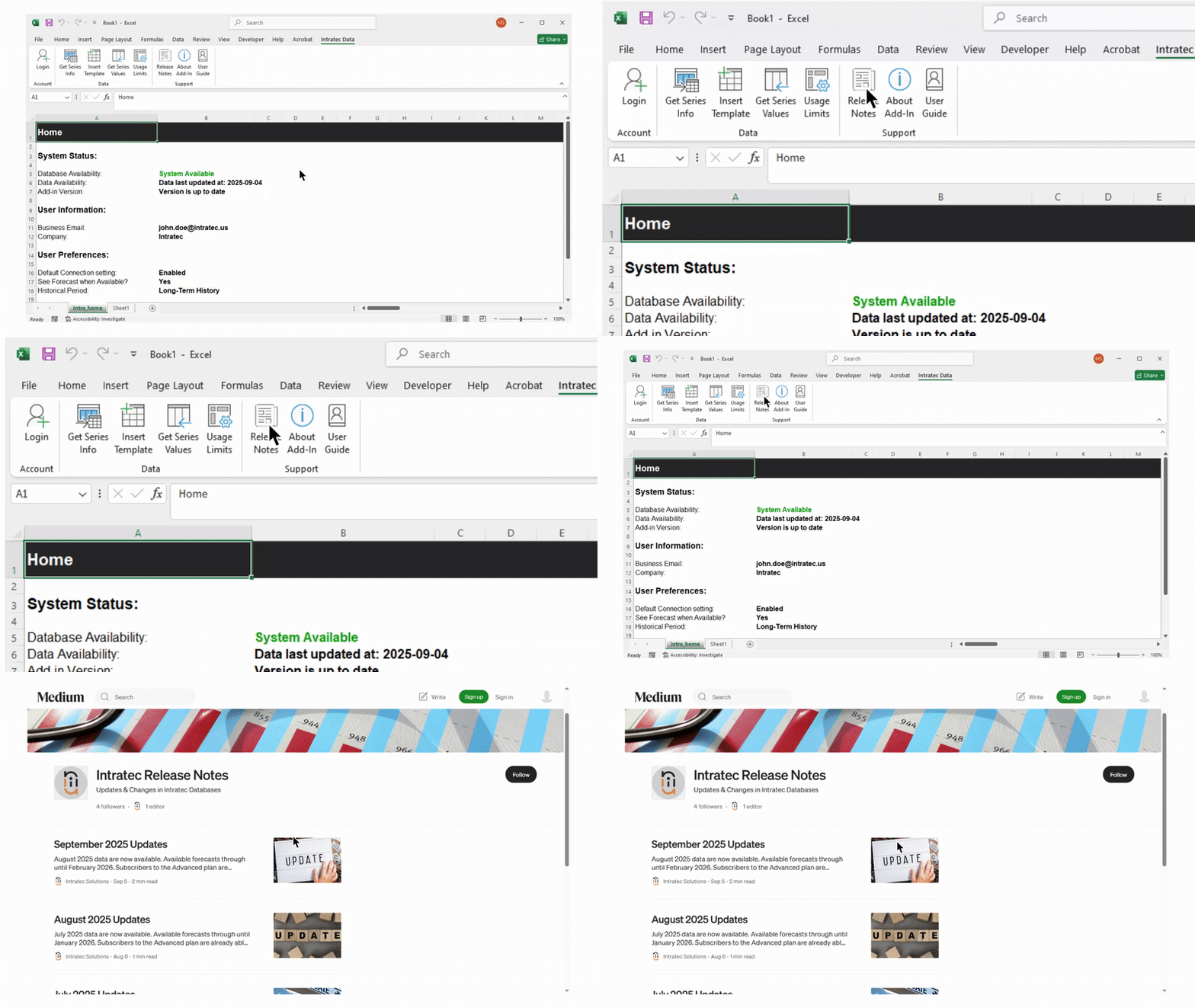
- Click the Release Notes button in the Intratec Data tab
- You will be redirected to the Intratec release notes web page
The release notes page contains information about new assessments, data revisions, and other changes.